- 1.Download & Installation
- 2.Multiple computers
- 3.Get Started
- 4.Deployment mode
- 5.Sales
- 6.Purchase
- 7.Inventory
- 8.Finance
- 9.Settings
- 10.Industry-specific features
- 12.FAQ
9.3.3 Modify the print template
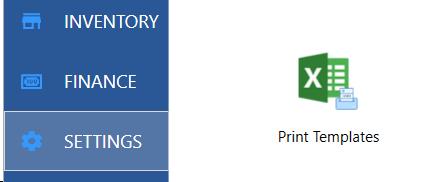
[Settings] - [Print Templates]
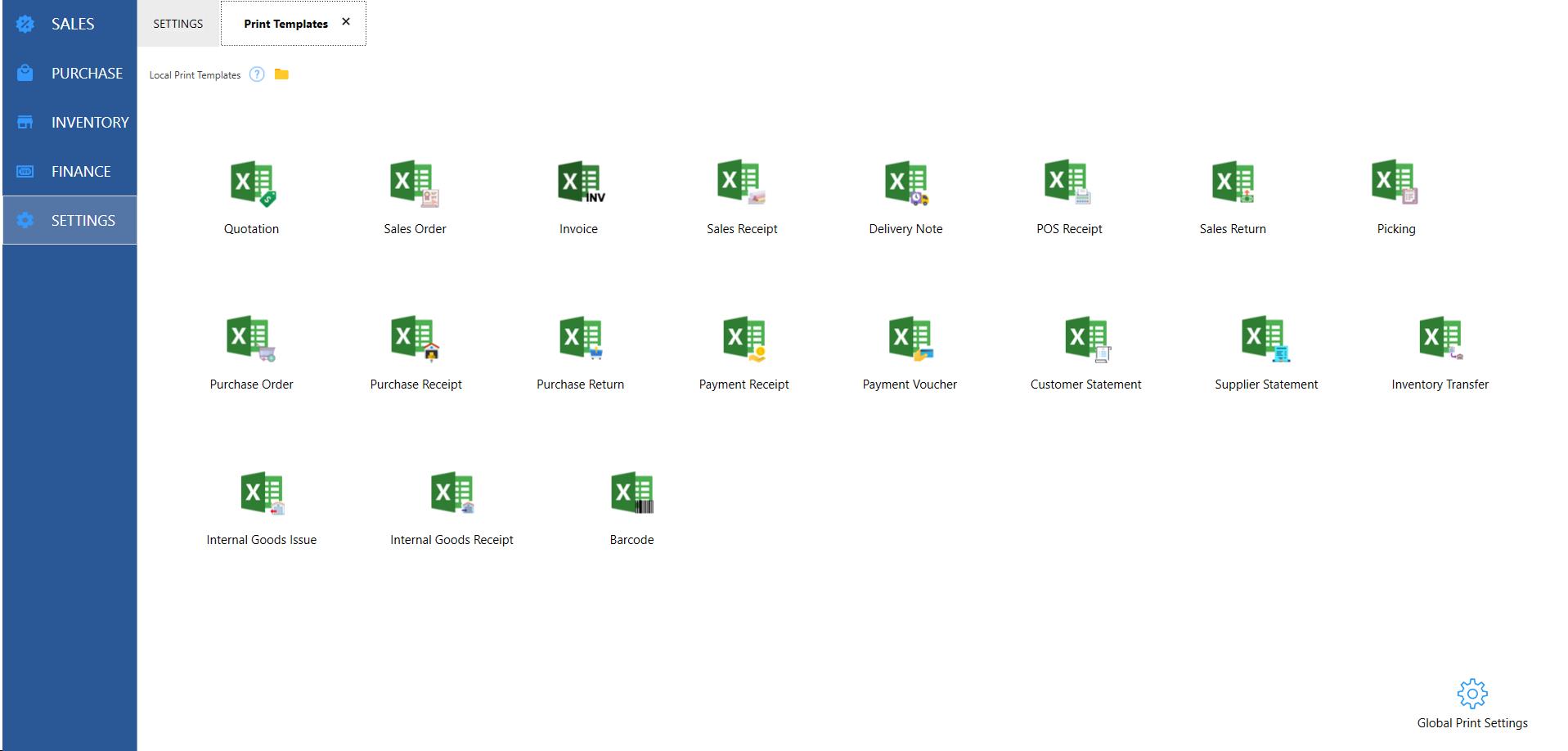
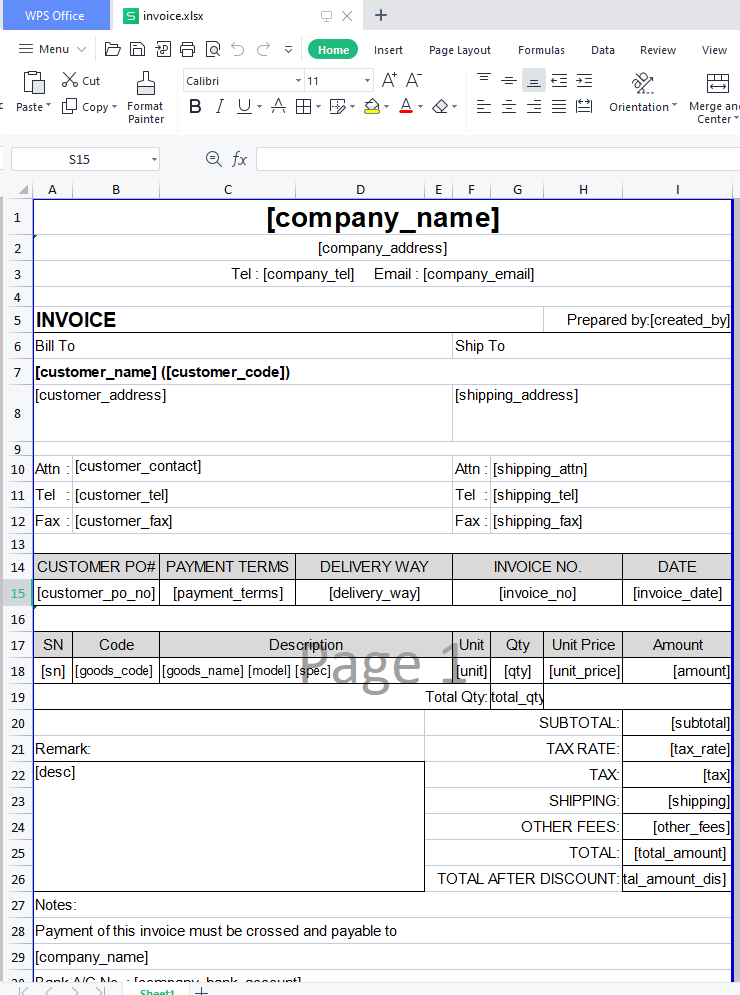
take Invoice as an example
Notes:
1. Cannot open multiple same print template files at the same time.
Because Excel files automatically become read-only,
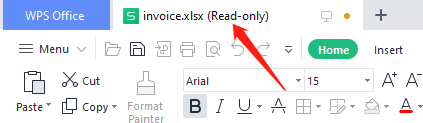
they cannot be saved. When saving, you are prompted with the following information:
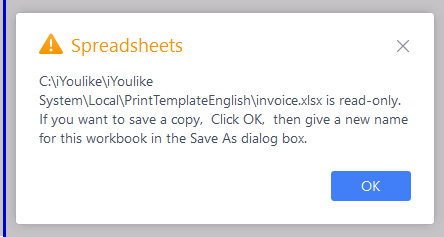
Solution: Close all excel and reopen one print template.
2. The print template is an Excel file, so it is very simple to modify,do the same operation as you normally modify Excel.
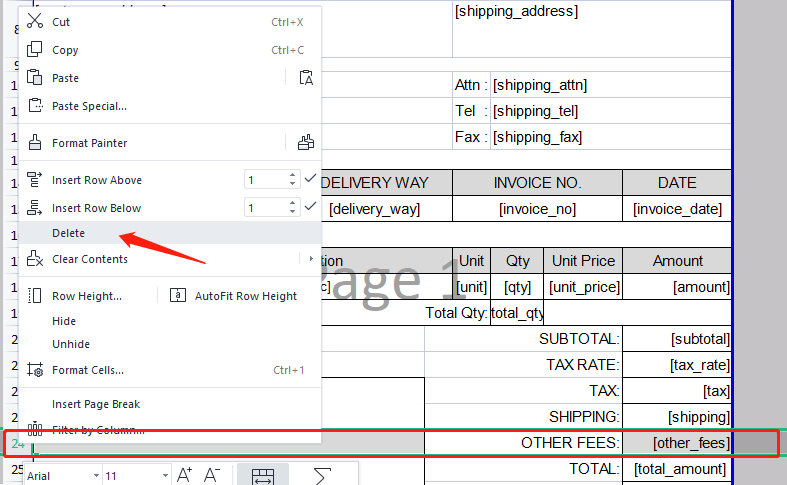
3.Unwanted content can be deleted directly.
For example, if you don't need [other fees], you can delete this row.
4. You can add what you need
Such as adding a note

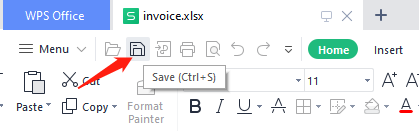
5. After the modification is completed, you must save Excel to take effect
5.Code
Containing [ ] represents codes such as [invoice_no], [invoice_date], which are codes.
The role of the code:
the content of each document is different, the system will automatically replace the actual content according to the code. You can't modify the code, but you can delete the code that you don't
use.
For all supported codes, please see 9.3.4
6.Insert logo
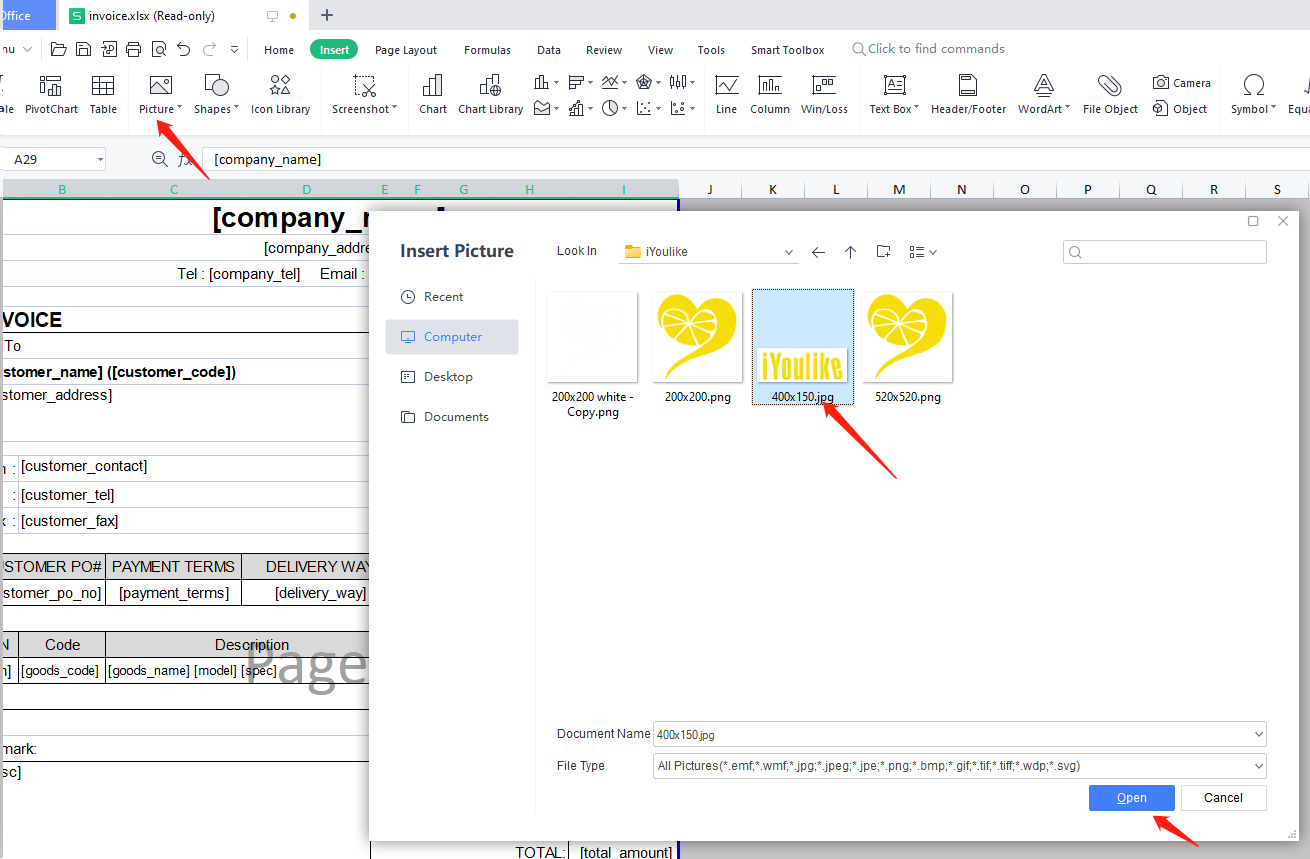
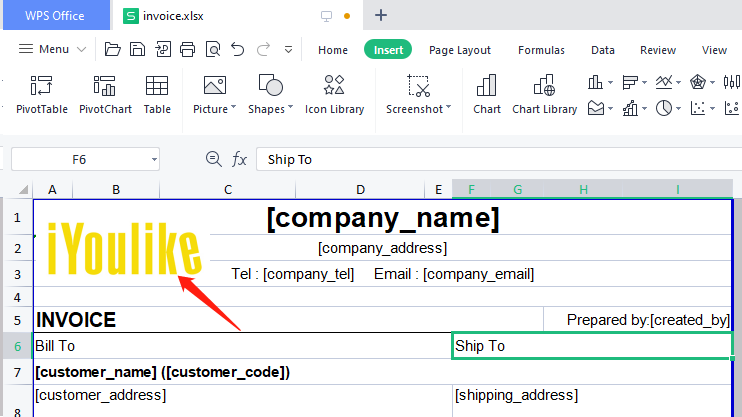
Resize the logo and move it to the appropriate position.
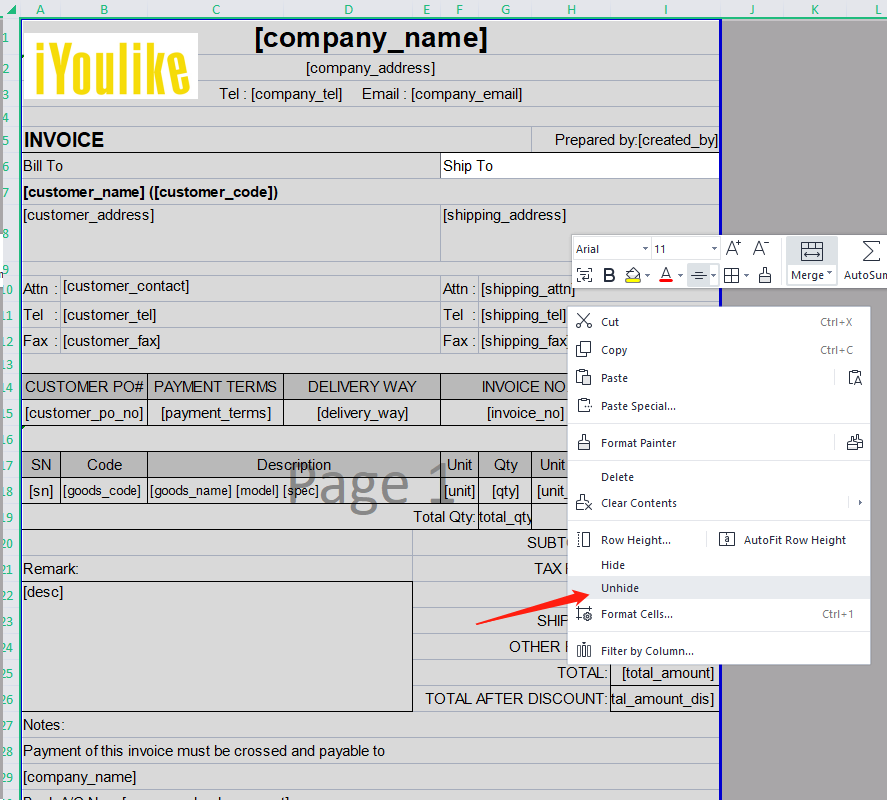
6.Show or hide columns
Some infrequently used columns are hidden by default, and if necessary, all of them can be displayed to see if they need to be used.
Ctrl+A Select All, Right-click, Unhide
7. Adjust the width of the column
Remember to finish modifying it, be sure to save it.